LV Design Atlas – Material Information Portal (Public)
This guide explains how to use the LV Design Atlas – Material Database (Streamlit app) to browse materials, filter by standards and product forms, and search materials by property criteria with interactive charts.
1. Browse Materials
The Browse Materials tab is the fastest way to find a material by name or number and inspect its properties.
How to browse materials:
- Search by name or number
- Use “Search by name or number” to search in:
- Material Number
- Short Name
- UNS Number
-
Example:
1.4571,X6CrNiMoTi, orS31803 -
Direct ID Access
- Use “Direct ID Access” if you already know the internal Material ID.
-
If the ID exists, the application jumps directly to that material.
-
Apply filters
- Microstructure (e.g., Austenitic, Ferritic, Duplex)
- Product Form (decoded from the internal product-form bitfield, e.g., Plate, Tube, Forging)
- Code Category (AD 2000 / EN Code / ASME / Other)
-
Design Code (filtered list based on the selected category)
-
Select a material
- Results are displayed in a table.
- Click a row to load:
- The material information card
- All available property curves and charts
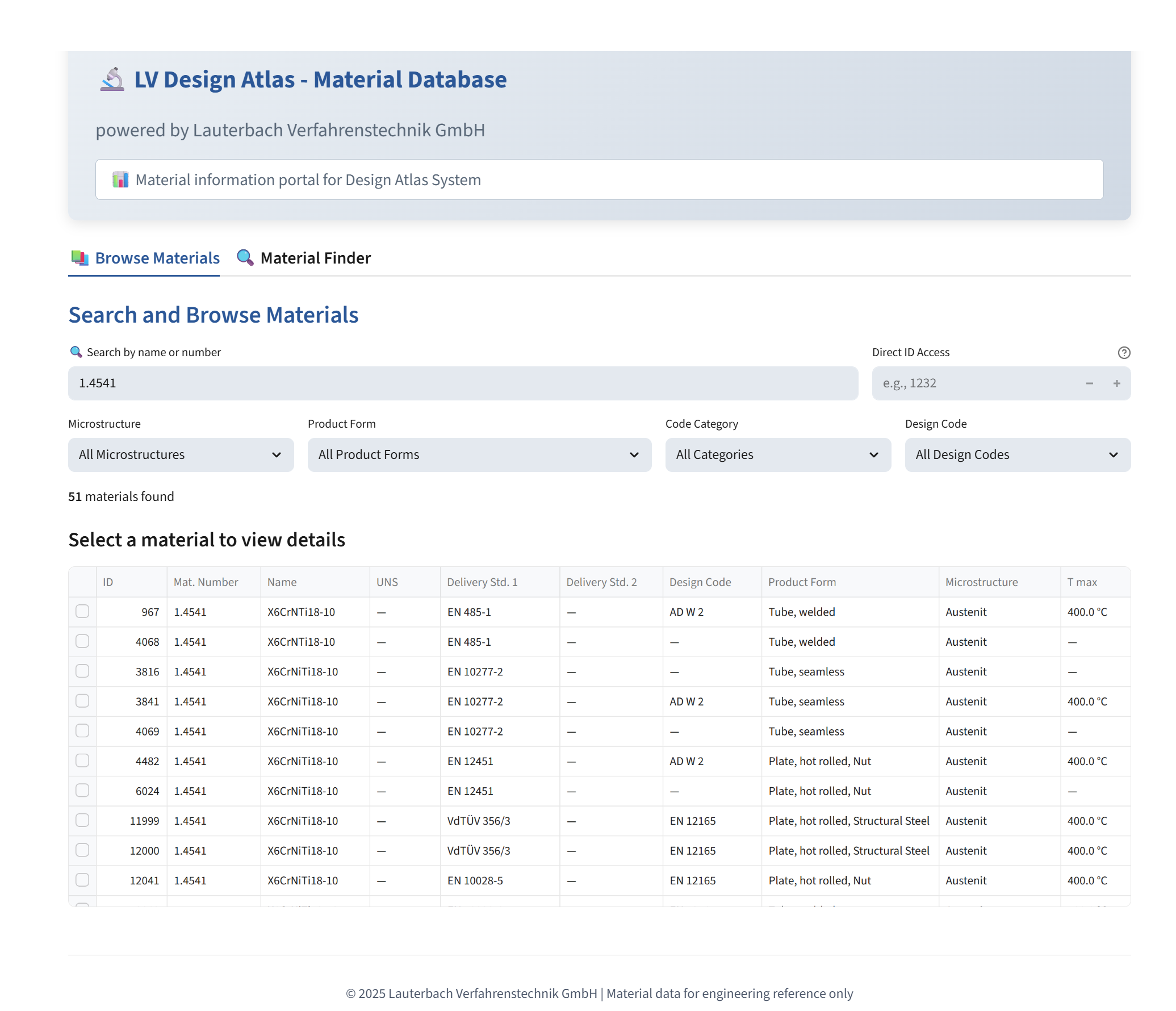 Figure 1: The Material Viewer interface.
2. Material Details Card
After selecting a material, a structured material information card is displayed.
Displayed information:
- Material ID
- Short Name
- Material Number
- UNS Number
- Microstructure (automatically translated to English where applicable)
- Product Form (decoded list)
- Delivery Standard(s)
- Design Code
- Maximum Temperature Limit
- Optional Notes (if available in the database)
3. Material Properties & Charts
Each material may contain multiple characteristic curves for different properties (e.g., Yield Strength, Tensile Strength, Elastic Modulus, Thermal Conductivity, Heat Capacity, Density).
How the properties section works:
- Property tabs
- Each property type is shown as a separate tab.
-
Tabs display the property name and its unit.
-
Validity ranges
- Each curve shows its validity limits, such as:
- Diameter range Ø
- Thickness range t
- Temperature range θ
-
Inclusive or exclusive limits are clearly indicated.
-
Interactive chart
- X-axis: Temperature [°C]
- Y-axis: Property value (including unit)
-
Hovering over the curve shows exact numerical values.
-
Data table
- Expand “View Data Table” to see all numerical data points.
- The table is styled according to the active theme for optimal readability.
4. Material Finder – Search by Property Criteria
The Material Finder tab is designed for engineering use cases such as
“Find a material with a minimum yield strength at a given temperature.”
Workflow:
- Optional: Base Filters Open “Base Filters” to limit the search space:
- Text search (Material Number, Short Name, UNS)
- Design code selection using categories:
- Select Category → then choose a Design Code
- Microstructure selection
-
Product form selection
-
Define property filters In the Property Filters section you can define one or more criteria:
- Property (e.g., Yield Strength Rp0.2, Tensile Strength Rm, Allowable Stress, Elastic Modulus)
- Operator (
>=,>,<=,<,=) - Target Value
-
Temperature [°C]
-
Add multiple filters
- Click “Add Filter” to define additional criteria.
-
Remove a filter using the delete icon.
-
Execute the search
- Click “Search Materials”
-
Only materials fulfilling all criteria (logical AND) are returned.
-
Inspect results
- Results are displayed in a selectable table.
- Clicking a row immediately opens the detailed material view with charts.
5. Determination of Property Values at Temperature
When a property value at a specific temperature is required, the following logic is applied:
- Exact match if a data point exists at the specified temperature
- Linear interpolation between the nearest data points if no exact value exists
- Nearest available value if the temperature is outside the defined range
(no extrapolation beyond available data)
6. Design Code Categories
Design codes are grouped into the following categories:
-
AD 2000
Codes starting withAD W…orTRD… -
EN Code
Codes starting withEN,DIN EN,prEN, orEN ISO -
ASME
ASME and ASTM-based specifications (ASME,SA-,SB-,SF-,A…,B…) -
Other
All remaining codes (e.g., DIN, VdTÜV, SEW, API)
These categories control the behavior of the Design Code filters throughout the application.
💡 Pro Tip: Efficient Navigation
If you already know the Material ID, use Direct ID Access for instant access.
For exploratory work, use Browse Materials.
For performance-based selection (e.g., minimum strength at elevated temperature), use Material Finder.