Module Selector: Finding the Right Calculation
The Module Selector is the central starting point of the Design Atlas. It allows you to quickly locate and launch the specific engineering module you need from a library of over 500 options.
1. Categorization & Filtering
To manage the vast library, use the top navigation buttons to filter by engineering discipline: * Stress Calculation: Strength assessments according to AD 2000, EN 13445, or ASME. * Process Engineering: Thermal design, heat transfer, and fluid dynamics (VDI Heat Atlas). * Client Modules: Customized solutions specific to your company's needs. * FEM: Direct access to Finite Element Method tools for nozzle loads and stability.
 Figure 1: The Module Selector interface with search, filters, and sidebar.
2. Searching for Modules
Use the Module Search bar for instant access: * Search by ID: Enter the standard number (e.g., "1092" for flanges). * Search by Keywords: Enter terms like "Cylinder", "Flow", or "Valve" to filter the list dynamically. * Language Toggle: Use the DE / EN buttons to switch the interface and technical descriptions between German and English.
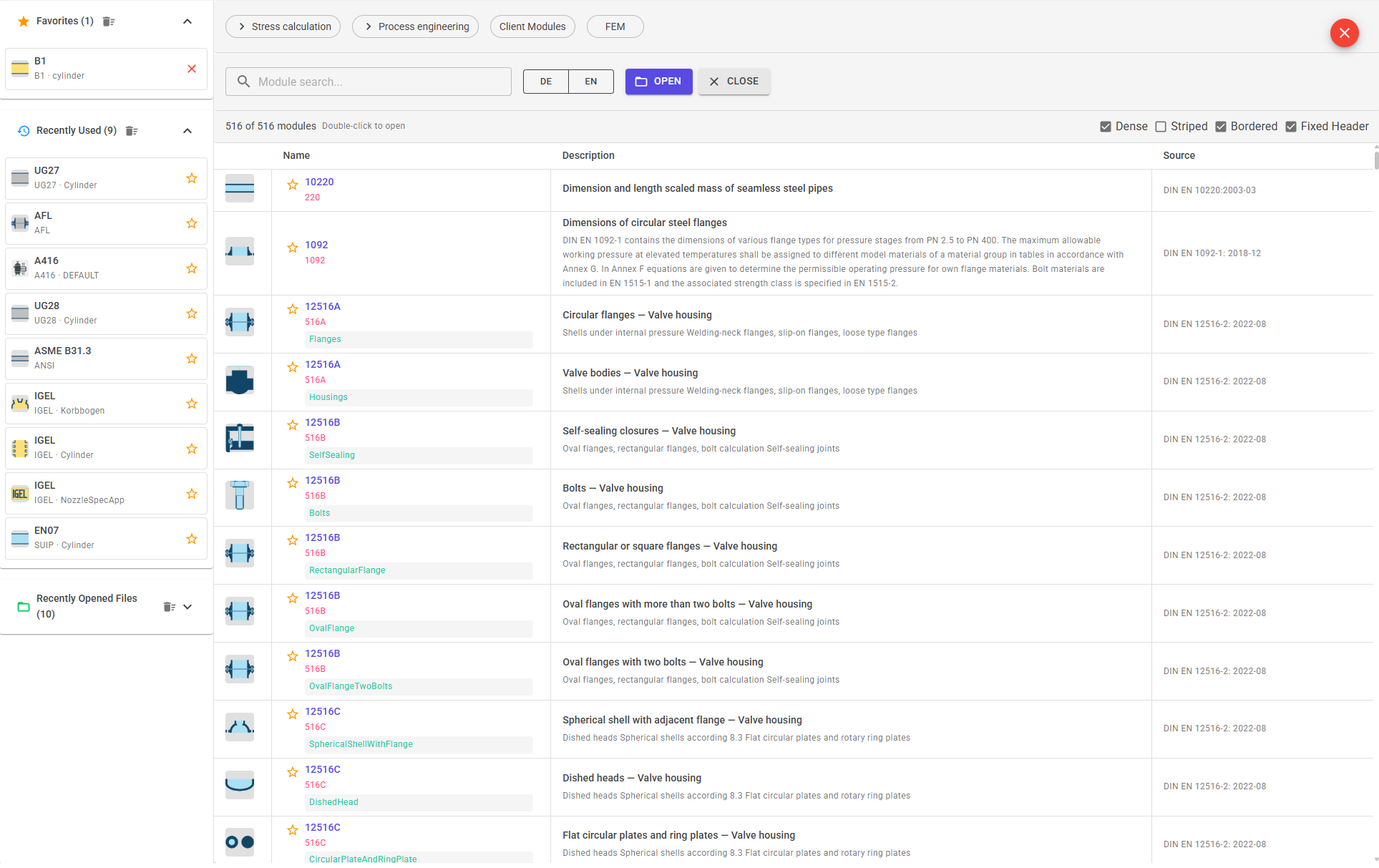 Figure 1: The Module Selector interface with search, filters, and sidebar.
3. Sidebar Features
The sidebar on the left tracks your workflow for maximum efficiency:
* Favorites: Save your most frequently used modules by clicking the star icon.
* Recently Used: Quick access to the last 10 modules you launched.
* Recently Opened Files: Directly re-open previous calculations (e.g., .atl files) without searching for the module first.
4. Module Table Details
The main table provides all the technical context you need before starting: * Icon: Visual representation of the component (e.g., flange, pipe, or closure). * Name & ID: The internal identification code of the module. * Description: A brief summary of the technical scope and application. * Source: The official standard or norm the calculation is based on (e.g., DIN EN 12516-2: 2022-08).
5. Launching a Module
To start a calculation, simply double-click on any row in the table, or select it and click the OPEN button.
Pro-Tip for Power Users
You can customize the table view using the checkboxes in the top right to optimize your workflow: * Dense: Fits more modules on one screen. * Striped / Bordered: Improves readability between different standards. * Fixed Header: Keeps the search bar and filters visible while scrolling.
Need help finding a specific norm? Use the search bar or contact our support if a specific calculation module is missing from your license.